
0
$0.00
0 items
Originally published on Substack.
But in the digital photography era, while heaps of the terminology (such as lightbox and loupe) have remained, asset management requires either a specialist app, or a combination RAW editor/asset manager.
There are some solid free options, such as XnView, DigiKam and Adobe Bridge, and full-blown pro apps such as Photo Mechanic and Cyme Peakto.
But in the middle there is a range of apps pitched at the hobbyist or semi-professional that serve as a bridge between a folder full of photos and a RAW editor.
PixlPath is a Mac-only asset manager with a highly competitive single purchase price of $15 USD. It’s pitched squarely at photographers who want more than a folder full of RAWs, but don’t need the industrial strength (or price tag) of Photo Mechanic.
I’ve been testing PixlPath to find out if it punches above its $15 price tag, or if you’re better off sticking with the free options and spending that fifteen bucks on a couple of coffees instead.
PixlPath is a surprisingly unique product, taking an unashamedly rigid stance on asset management, with no post-processing capabilities whatsoever. I must admit that I find that approach quite refreshing since the bolted-on editing tools you often find in asset management apps are nearly always a load of shite. This app isn’t pretending to be some one-stop-shop for your photos, it’s about providing a central location to index them, to view them and to then edit them in a third-party RAW editor.
It uses a reference-based system (files stay in place, catalogs store previews), which means you can have multiple catalogues catering to specific projects, events, timelines or whatever other group you choose. It utilises a traditional sidebar and thumbnail design with all the controls, filters, sort modes and folders listed on the left and a flexible thumbnail view on the right.
All of the essential tools are close at hand and the developer hasn’t tried to get clever with naming conventions. Everything is labelled precisely how you’d expect, meaning this is an app you can just start using.
The interface is highly configurable in the settings. Everything from the transparency on the sidebar to the thumbnail font size can be tweaked according to your taste. Every menu item and category can be enabled or disabled. Every keyboard shortcut can be modified. And in the main window, thumbnails can be presented in an extended form showing date, size, filename, or in a clean masonry view with no text information displayed at all.
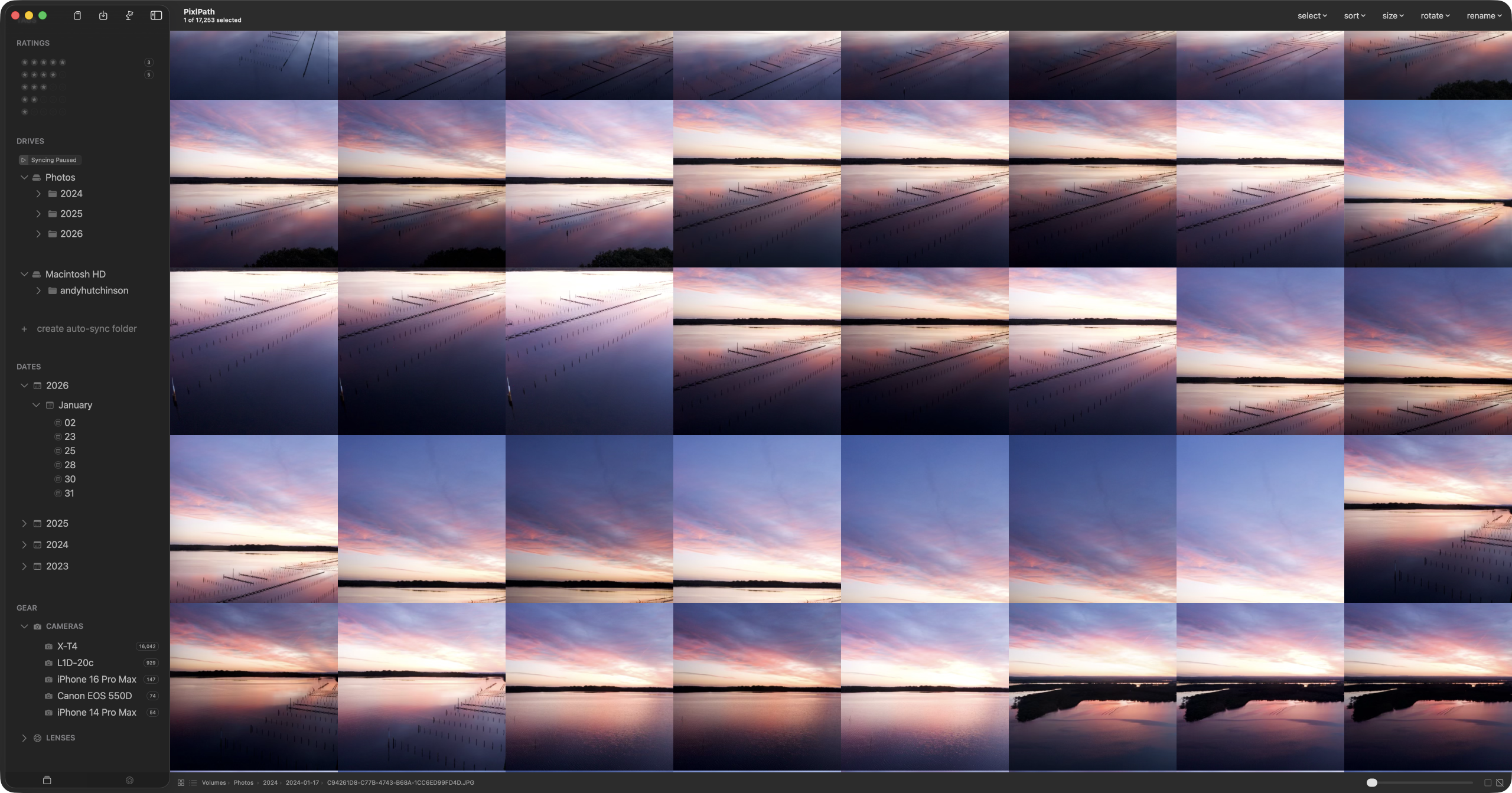
As I mentioned, PixlPath is a streamlined app perfectly focused on the task of asset management of photographs and the sidebar’s tools echo that intent. Turns out this is both a good thing and a bad thing.
For example, the search box is located right at the top of the sidebar, but it is restricted to searches for filenames only and is therefore of limited use. You cannot search for aperture, exposure, location, keyword or indeed any kind of metadata at all.
You can classify your photos by using the built-in tag, label and ratings, but disappointingly, none of these can be imported from existing embedded metadata or sidecar XMP files, which is highly likely to be a deal-breaker for many potential users of this app.
More frustratingly, there is no cross-platform keyword tool either. Tags serve the same basic purpose as keywords, but cannot be used in any external app.
In the latest version the developer has added AI-generated tags which utilises Apple ‘Intelligence’ to analyse photographs and generate candidates automatically. It works, but the resulting tags are too broad and generalised to be of any great use. Suggesting the tag ‘liquid’ for a photo of the ocean might be strictly accurate, but it’s not very helpful in a photographic sense. Perhaps this will improve markedly once Apple add Google Gemini to the operating system in a few months’ time.
Once a folder has been imported into PixlPath you can view by date, camera or lens, and thumbnail refreshes when you switch on that filtering are near-instantaneous. But with such limited options in terms of drilling down into photo metadata, you’ll spend more time scrolling than searching.
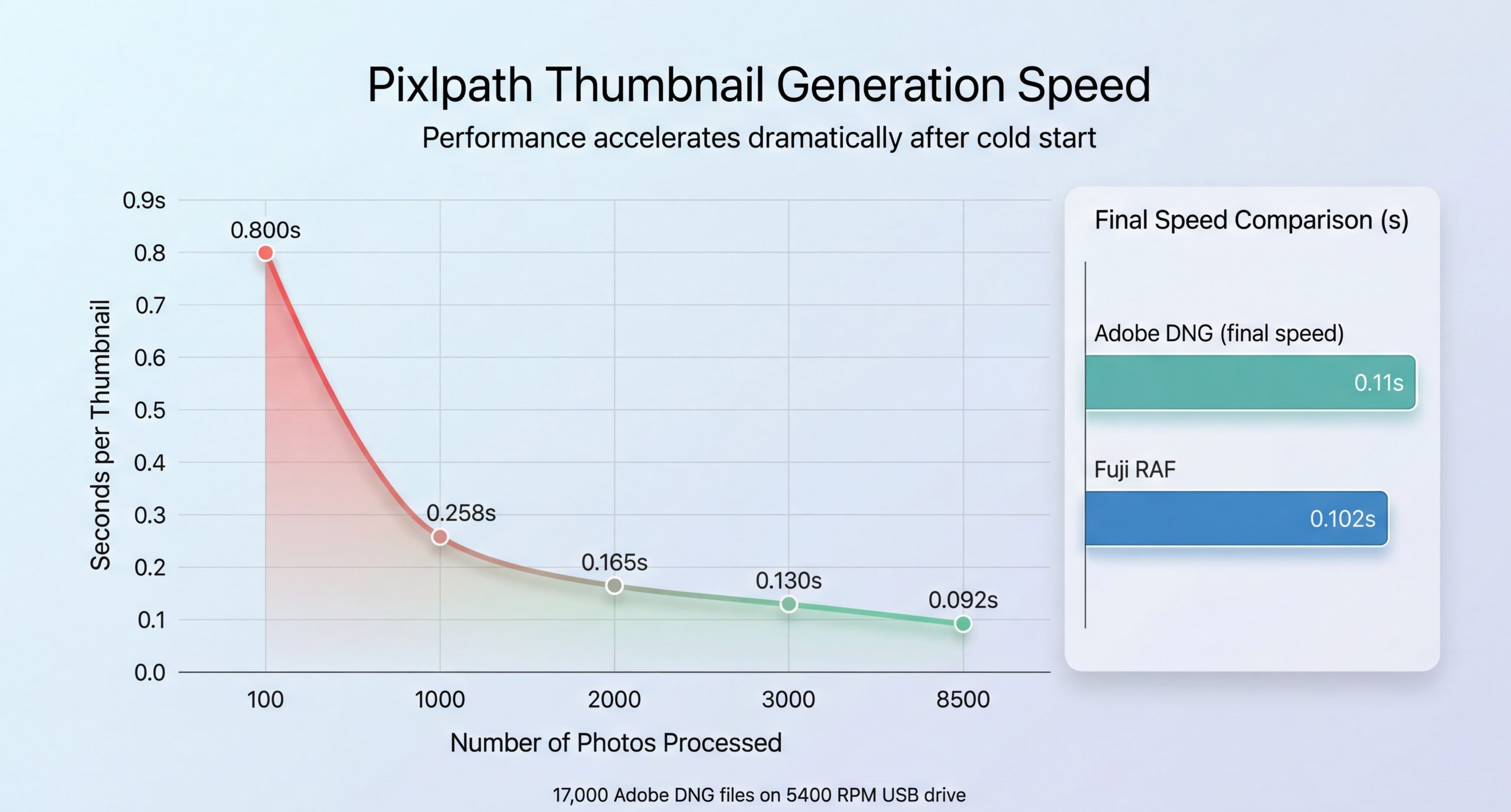
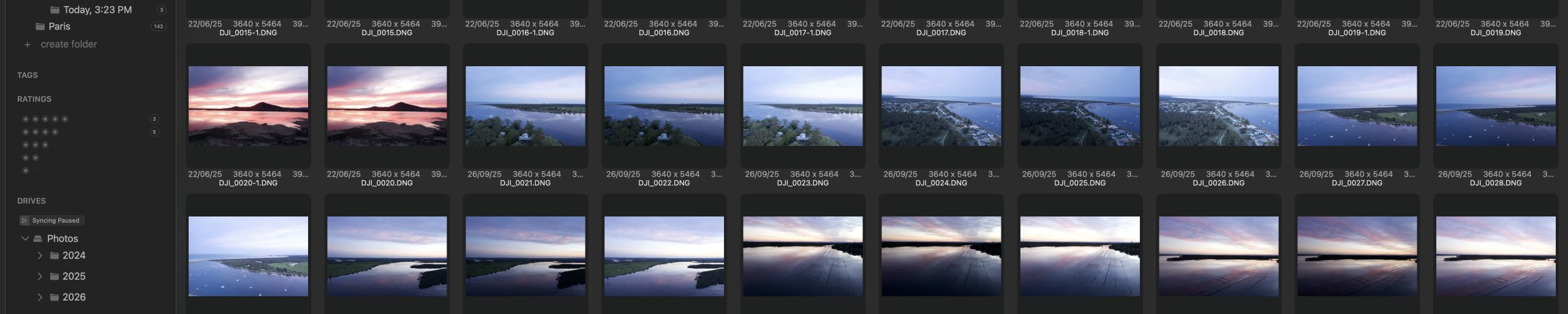
I tested the photo import tool on one of my year-based folders of images, containing just over 17,000 shots.
Thumbnail generation began at a slow 0.8s/photo, but accelerated to ten times that speed once warmed up. In all those 17,000 files took 31 minutes to import and generate thumbnails. My photos are on a fairly aged Western Digital Elements USB hard drive and that performance will improve if you’re using faster storage media such as SSD drives.
Once ingested, thumbnail scrolling in the main window is among the fastest I’ve ever seen. There is basically zero lag across 15,000+ photos, which is incredibly impressive, particularly if you’re used to the stuttering mess when scrolling in library mode in Adobe Lightroom Classic.
There is also zero lag when resizing thumbnails. It basically works in real-time with no stuttering or delay when resizing the grid.
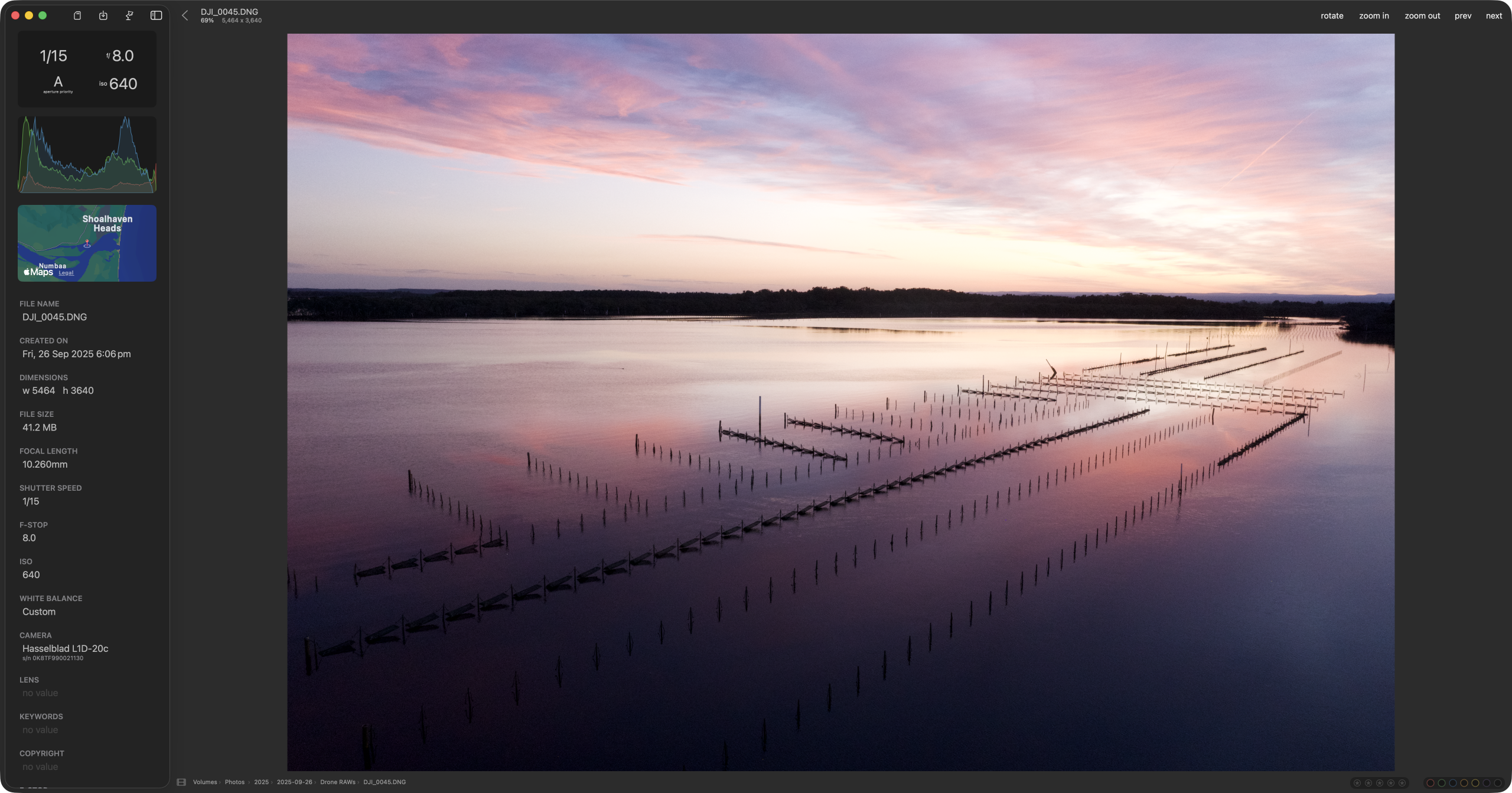
Filtering by camera or lens provided instant results, however there is a short lag of about a second in single image view, as the app renders in a high-res preview.
Tagging mode performed well too. I added a tag to a subset of 1,605 photos across multiple folders and the update took about five seconds to apply to all selected images.
The key strengths of this app are its speed and its focused asset-management design.
If you simply want a fast and efficient catalog to display your photographs, something that is more sophisticated than the Finder but not as complex as Digikam, then it will serve you well.
It has an excellent interface that sticks well to Apple’s design philosophies and every facet is highly configurable, including proper light and dark modes.
Ingesting photos from drives or SD cards is fast and efficient and the thumbnail view doesn’t often stop to catch its breath even on catalogs with tens of thousands of shots in them.
On the down side there are a couple of strange development omissions that are likely to put off anyone moving from another asset management app, particularly the complete lack of support for existing XMP sidecar data.
The app can only read EXIF data embedded in the photos, not any additional data such as ratings meaning that if you were downsizing from something like Lightroom you’d lose all of your star scores and would have to start from scratch using PixlPath’s built-in option.
I also find it strange that the developer decided not to include any traditional keyword functionality. Yes, you can use the tags which work along similar lines, but it’s a fairly primitive setup in comparison. It also seems strange that you can’t even search for any tags you created using the app’s own built-in search tool, although you can use the boolean filtering.
There was a feature to enable EXIF editing in previous builds, but due to some unexpected issues with compressed image formats, it is not available in the current build.
Another issue is that any photo directories, drives or folders you’ve added to a catalog need manual syncing if you add or remove photos from them afterwards.
You can enable auto-sync on a per-folder basis by right-clicking a drive folder and selecting “Make Auto-sync Folder”, which monitors that folder for changes. However, the developer explicitly recommends backing up your catalogs before using it and warns against enabling it until you’re familiar with the sync process. If auto-sync detects a missing file, it removes it from the catalog along with all associated metadata, so you need to tread carefully.
Despite my misgivings about this app, I have little doubt that it will find an audience with photographers looking for a very particular set of skills.
If you’re not moving photographs over from another system in which you’ve carefully tagged, rated and keyworded, then the lack of XMP sidecar compatibility isn’t an issue. And since the import speed is excellent, it’s fine for photographers who value speed and simplicity over sophisticated metadata handling.
The very Apple design of the app and the extreme speed with which it operates makes using it a lovely friction-free environment. I can scroll from the bottom to the top of a folder of photos and the thumbnails appear instantly. On Lightroom I could go and make myself a coffee while waiting for it to update.
The app hides surprising levels of complexity behind the simple interface and it’s well worth reading the manual fully in order to get the most out of it. For instance, one neat feature I discovered is that when creating a folder you can add sub-folders in brackets and the app will generate the nested folder structure for you.
So should you buy it? If you’re starting a fresh catalog, shooting regularly, and just want something fast to organise and find your shots without the bloat of a full DAM suite, then yes. If you’re trying to migrate an existing library with years of careful metadata work, probably not.
For fifteen bucks you get fast imports, instant browsing, and a clean interface that stays out of your way. That’s it. If that’s all you need, you’ll be delighted. If you need more, then you already know this isn’t for you.


