The Best Panorama App in 2025 … is Completely Free?
Sometimes the best things in life really are free.
 Andy Hutchinson
12 min read
Andy Hutchinson
12 min read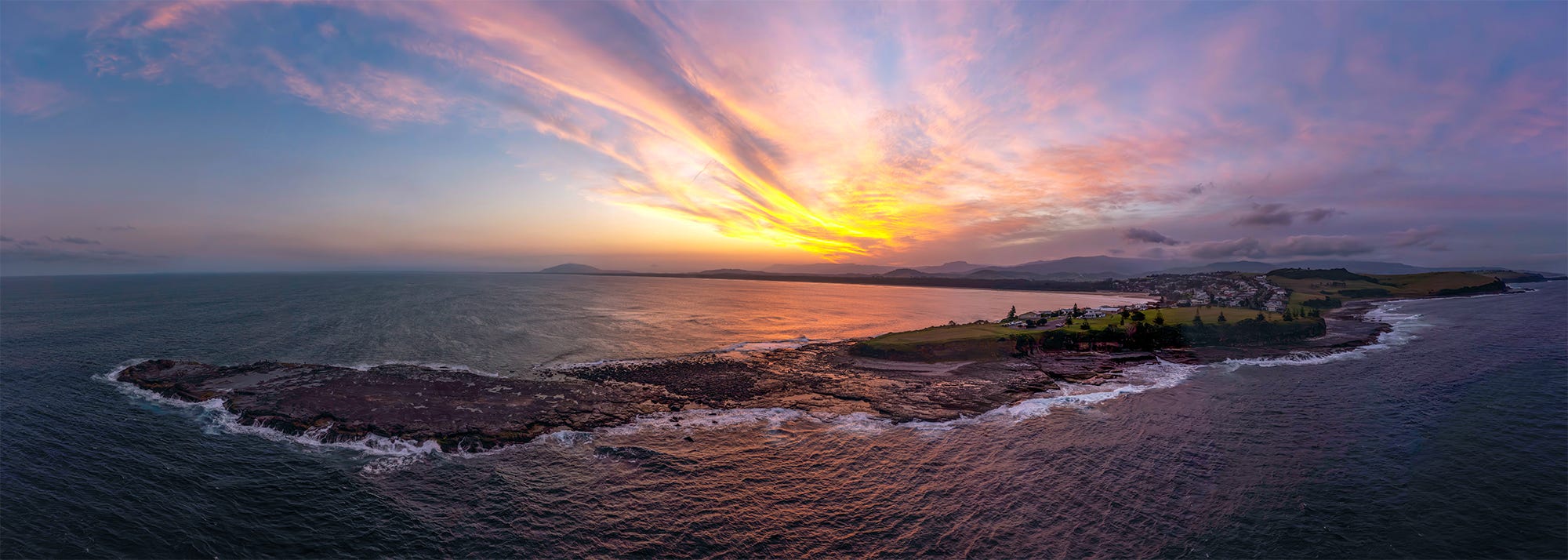
P
anoramas are a brilliant way of showcasing the true majesty of a landscape, enabling you to condense a fantastic amount of detail into an image that breaks free from traditional frame constraints. But merging multiple individual shots into a single image is a far from simple process – one that requires complex mathematical coding to plot control points in those overlapping images.
You need specialized software to merge those images and, let’s just say that not all apps are created equal. After putting the latest versions of all the well-known apps through their paces and rendering many gigabytes of landscapes (and then re-testing because I didn’t believe the results), I came to a surprising conclusion – the best pano app of them all is completely free.
The TL;DR
We all hate click-bait, so here are the front-loaded results: The open source app Hugin proved to be the most reliable and most capable panoramic stitching app I tested – yes, better even than the latest version of PTGui. Don’t worry, I’ve brought the receipts.
The specialized drone pano app Panovolo was good – but, surprisingly, out-classed in rendering drone panos by Hugin. Of the panorama tools built into well-known photo editors, Lightroom Classic was best, closely followed by Photoshop. The other version of Lightroom produced (unsurprisingly) the same results.
Affinity Photo was about as good as Capture One, which is to say – bad even if they were classed as beta releases – which they are not. Then, even further behind, came Luminar Neo and in last place was On1 Photo RAW.
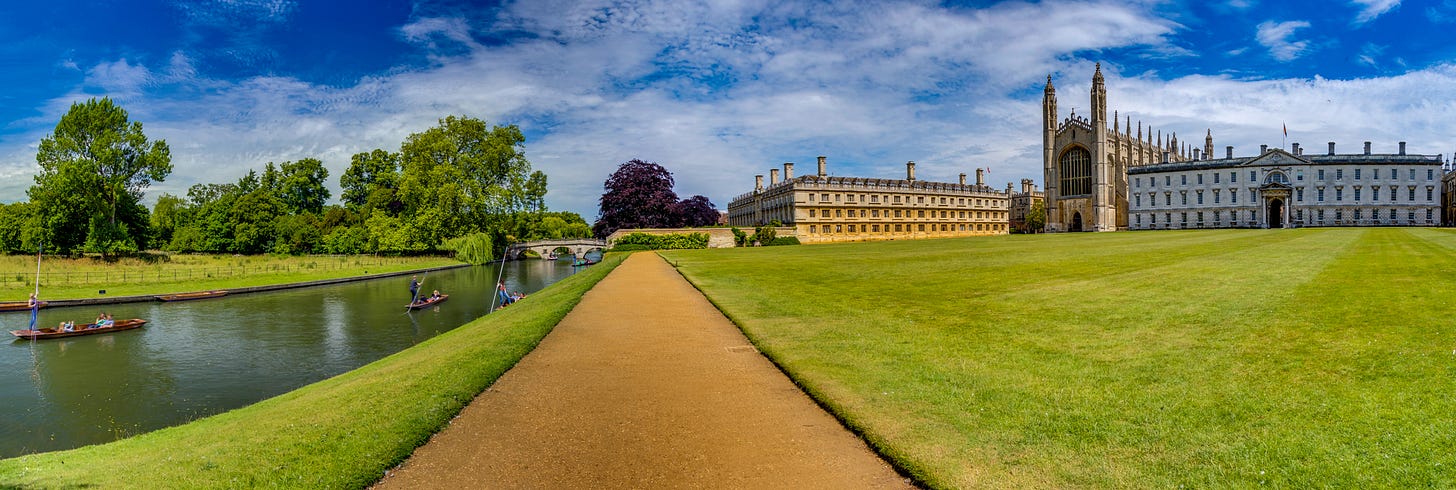
Testing Methodology
To put these apps through their paces, I needed to test them on edge cases – my old TI-84 school calculator could probably merge a regular pano with heaps of unique detail in each frame. So I concentrated on aerial panos, for the simple reason that I live on the coast and merging panos with the kind of empty horizons you get in the kind of coastal panos I regularly photograph here, is bloody hard. I did of course also try regular panos, and several of the apps still managed to stuff them up too.
Testing was conducted on an M2 MacBook Pro with 32GB of RAM, using the MacOS versions current as of Valentine’s Day 2025. Since performance levels vary hugely from system to system and platform to platform, speed metrics are fairly meaningless. However, PTGui was the fastest by some margin.
The Specialist Apps
The headline when it comes to the specialist apps is that they far exceeded the quality of the pano tools in all of the photo editors. It’s an extra step to output your photographs to a third-party app, but given my testing with those built-in tools, it’s a step you’ll want to take. Here’s how the fared.
PTGui ($189 Personal, $335 Pro)
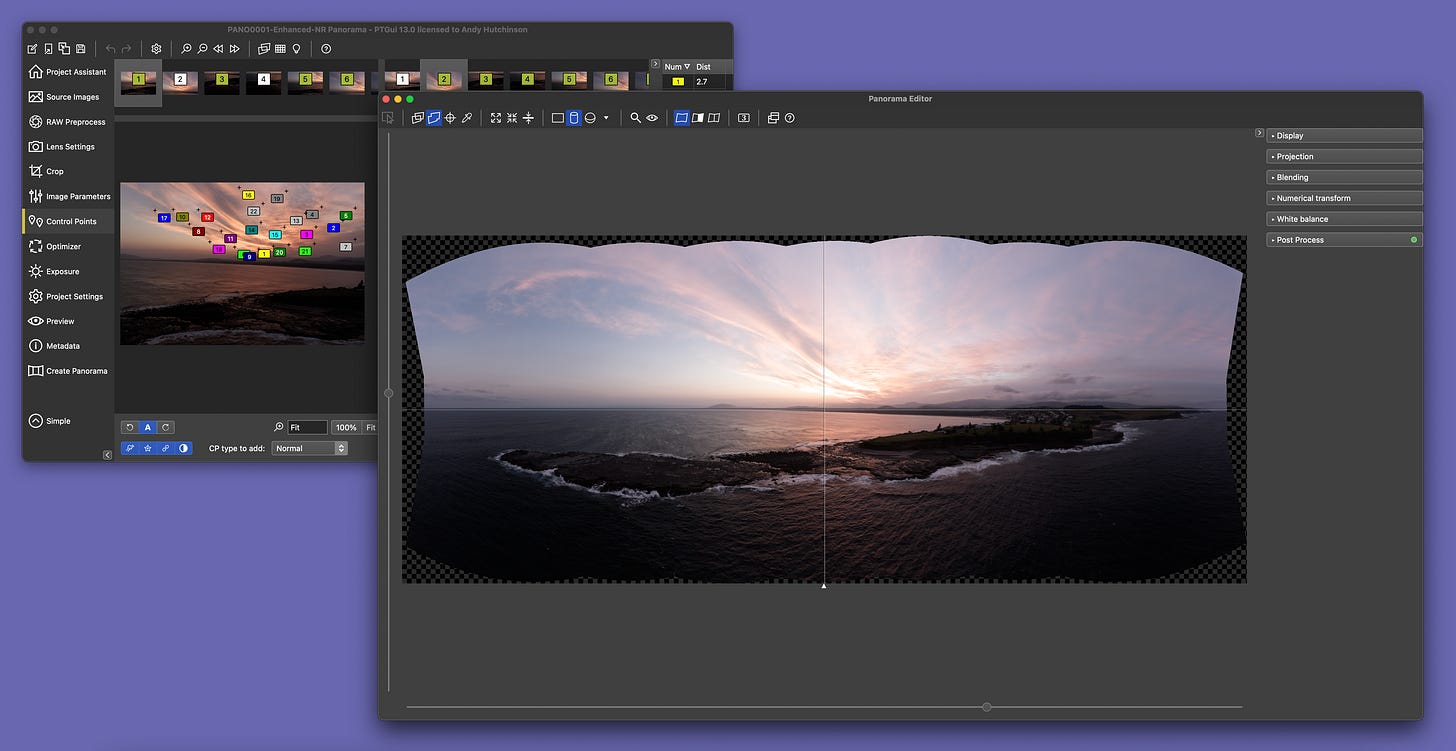
I’ve owned PTGui for about eight years now, buying it around the same time I upgraded to a Phantom 4 drone. Despite its high price tag, could best be described as ‘functional’. It has a step-by-step workflow design and split window functionality but it will undoubtedly be confusing when you first start using the app. My advice is to keep it simple and learn the advanced tools as and when you need them for any panoramas you’re working on.
There are a phenomenal number of variables and options built into PTGui including RAW pre-processing for luminance-based denoising, cropping, lens settings and exposure optimisation, but you can simply use the Project Assistant mode to add images, align and then output them. It’s extremely fast and has a batch mode for processing multiple panos.
It performed well in testing, managing to find control points across all images – even in monotone skies. However, it also consistently had stitching errors in aerial panos – quite large errors in some cases.
You can manually tweak control points when there are such stitching errors, but this involves zooming right in and scrutinizing the smallest details of adjacent panoramic frames. In other words, you end up doing precisely what the app is supposed to do.
Ultimately it’s a specialised tool aimed squarely at professionals and that’s reflected in the high price. If you’re a casual photographer or you only sporadically shoot panos then it’s not a good option. And even if you are a professional, you might want to check out Hugin before reaching for your credit card.
Hugin (Free)
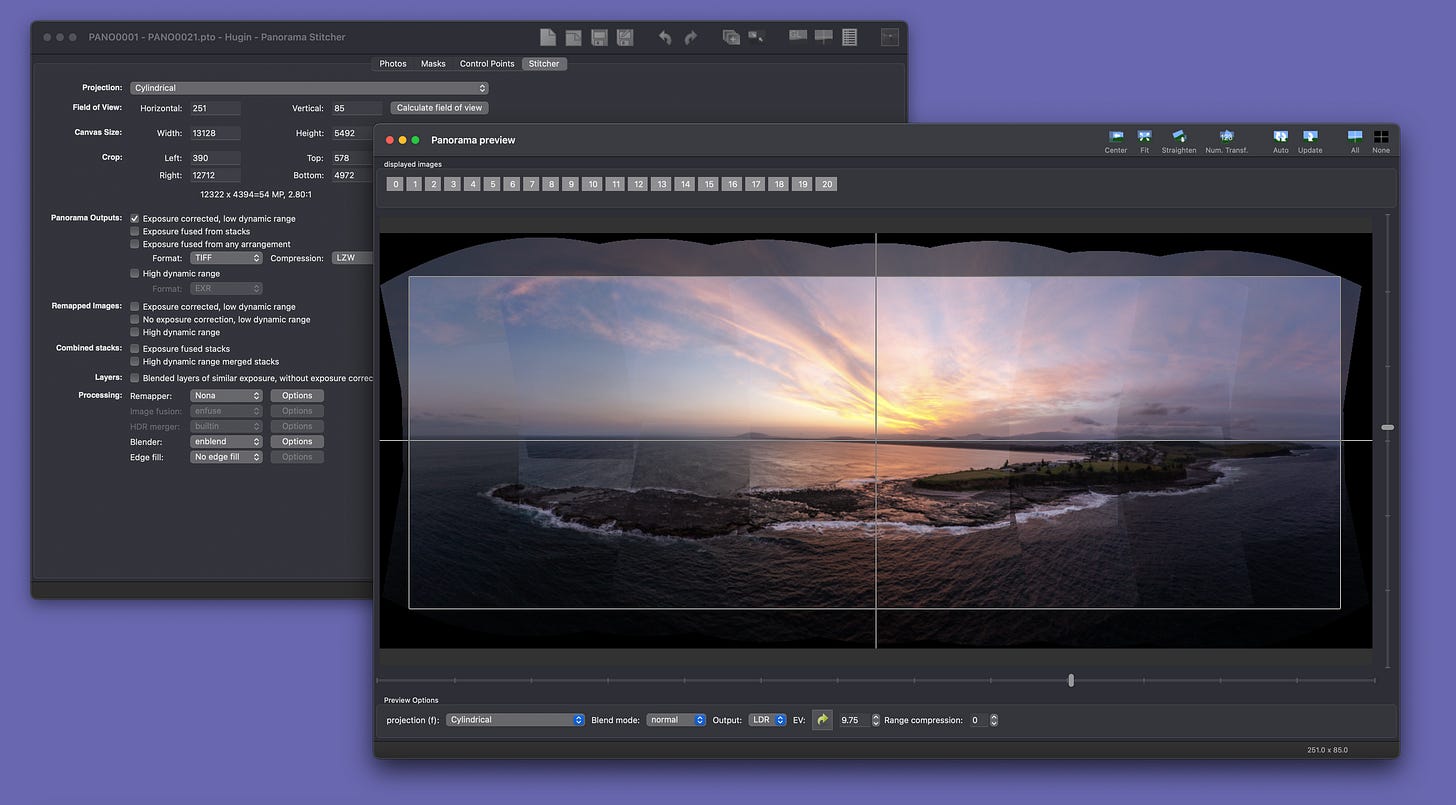
Using the same core Panorama Tools library as PTGui (developed by Helmut Dersch in the late 1990s), Hugin – pronounced ‘HewGin’ not ‘huggin’ – proved to be the standout performer. While considerably slower than PTGui (about 50 times slower), it takes about 90 seconds to render a 21-shot pano on my Mac, so it’s not a deal-breaker.
Yes, Hugin has a horrible thrown-together interface, but I’ll cut the developers some slack because firstly, they’re doing it for nothing but the love of it and secondly, they’re doing it best. In my testing, Hugin was the best pano stitcher of all apps tested. It managed to find controls in all of the photos and had far fewer stitching errors than PTGui.
To be transparent here – none of the apps were perfect, but Hugin had far and away the cleanest most error-free stitch outputs. When I first realised this, I kept hunting for panos to trip Hugin up, but it came through with flying colours every time.
That’s not all though – besides handling more projection types than any other pano app on the market, Hugin does HDR panos too. And it does them well. I had to pay to upgrade my licence of PTGui from version 12 to 13 to do this review and I was really regretting that $69 fee by the time I finished testing Hugin because it’s actually easier to use than PTGui and I don’t even get HDR panos for the money.
The only big downside with Hugin is that it can’t read native RAW files. My advice is to output 16-bit TIFFs which retain all the same colour and light information as a RAW. It’s a lot of extra storage space but you can always delete the intermediate files after use.
I also had problems running the current version of the app – it crashed every time I closed the tip-of-the-day box but I tried a GPU-fix build by the dev team and that works perfectly.
Panovolo ($29)
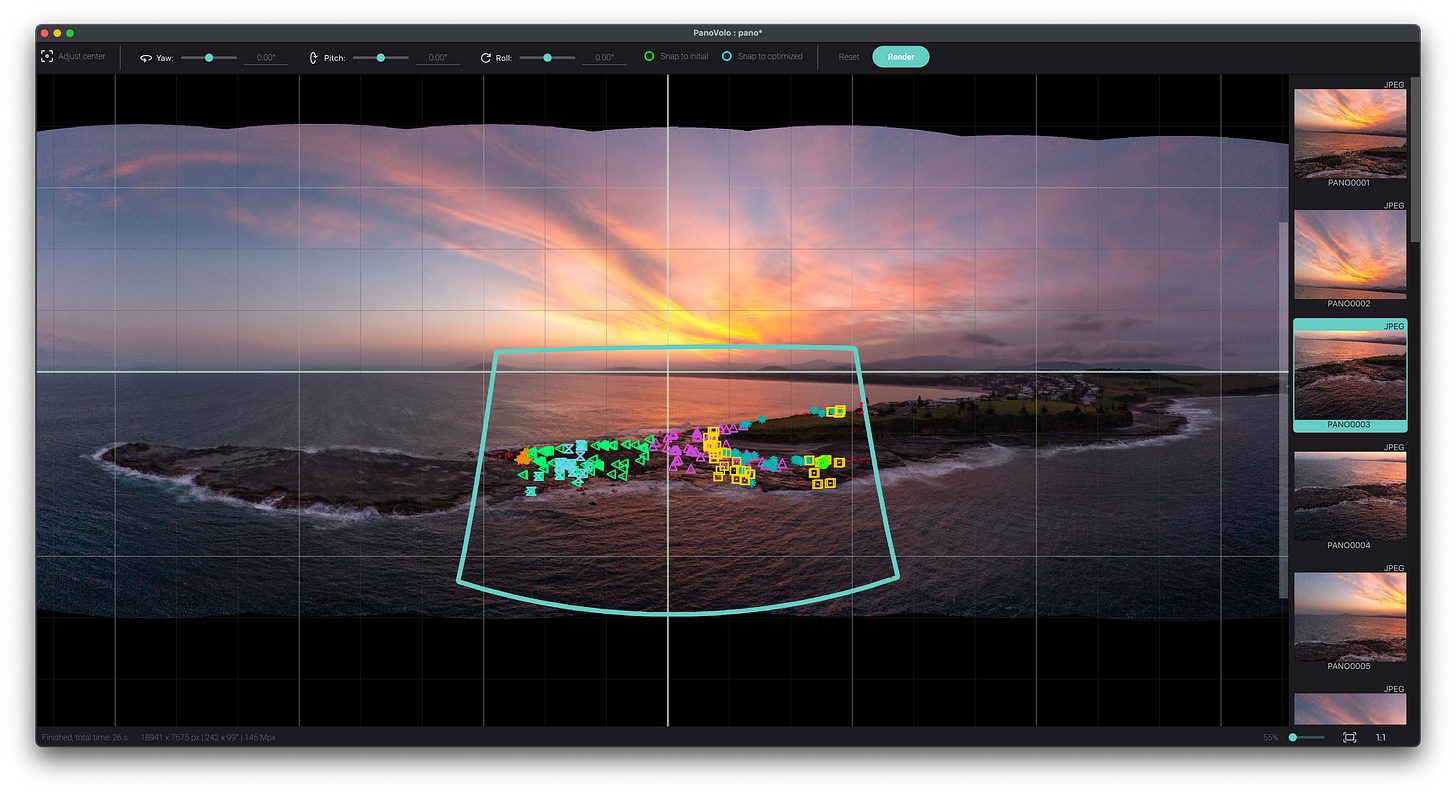
Developed specifically for drone shots, Panovolo uses flight telemetry meta-data to help stitch shots together. While it processes regular panos too, it’s the least configurable of the specialised apps, with limited editing capabilities and projection options.
It can run in individual or batch modes and takes about 20 seconds to process a 21 shot pano, putting it well behind PTGui but well ahead of Hugin.
It is also the least configurable of the specialised pano apps. It does have an edit mode, but it’s not very useful because you can only tweak yaw, pitch and roll for photos and the controls are god-awful.
It can do standard cylinder, mercator and rectilinear panos (horizontal or vertical) or 360 spheres, but that’s your lot.
In my tests it did about as well as Adobe Lightroom Classic, in terms of the quality of output panos, but was not close to Hugin. If you’re experimenting with drone panos for the first time then should know that it does an infinitely better job than the stitching built into the DJI apps – and if you don’t own something like Lightroom then at $29 it’s a solid option.
Photo Editor Built-in Tools
Adobe Lightroom Classic
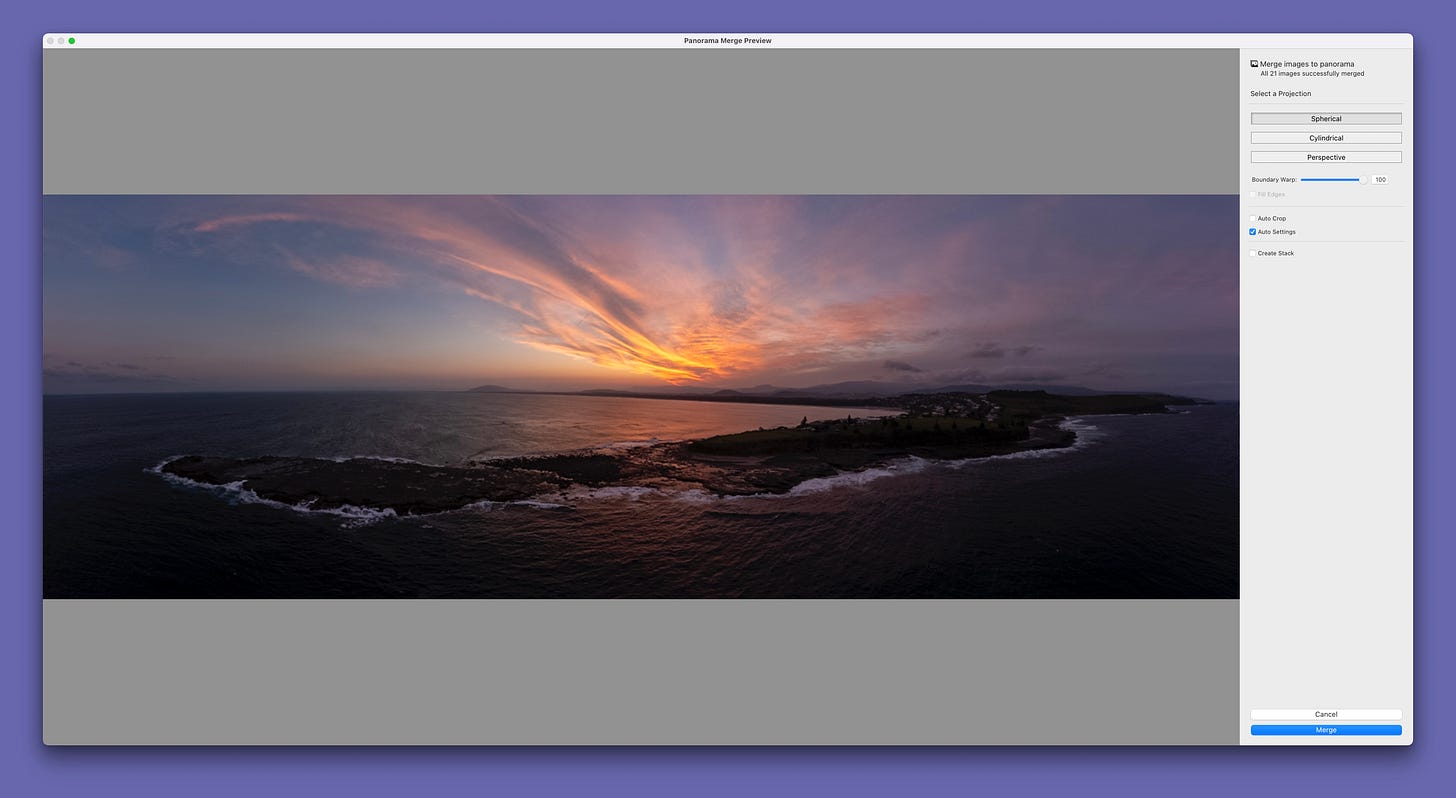
The best of the pano tools is in Adobe Lightroom Classic – it has an excellent panorama merging tool with a couple of features that make it a great fit for landscape photographers – but (like all the built-in pano tools) you cannot tweak away any alignment issues.
Lightroom Classic’s pano functions work well in most instances, but it occasionally struggles with aerial panos. When it does get it wrong, it’s rarely a drastic issue – usually a small step error on the horizon. But since you can’t edit the positioning of the images you need to edit it manually to fix the error either using generative fill or some manual work Photoshop.
You only got three basic projection types, though they’re probably all you’re ever going to need if you don’t have a drone or shoot real estate and therefore need to do 360º spheres. The boundary warp tool is brilliant, fill edges is great and the HDR panorama tool work like a charm as well.
Since all of my photos are managed in a massive Lightroom Classic catalog, the built-in pano tool is always what I use first and I only move on to PTGui or Photoshop on the fairly rare occasions when there are issues.
Adobe Photoshop
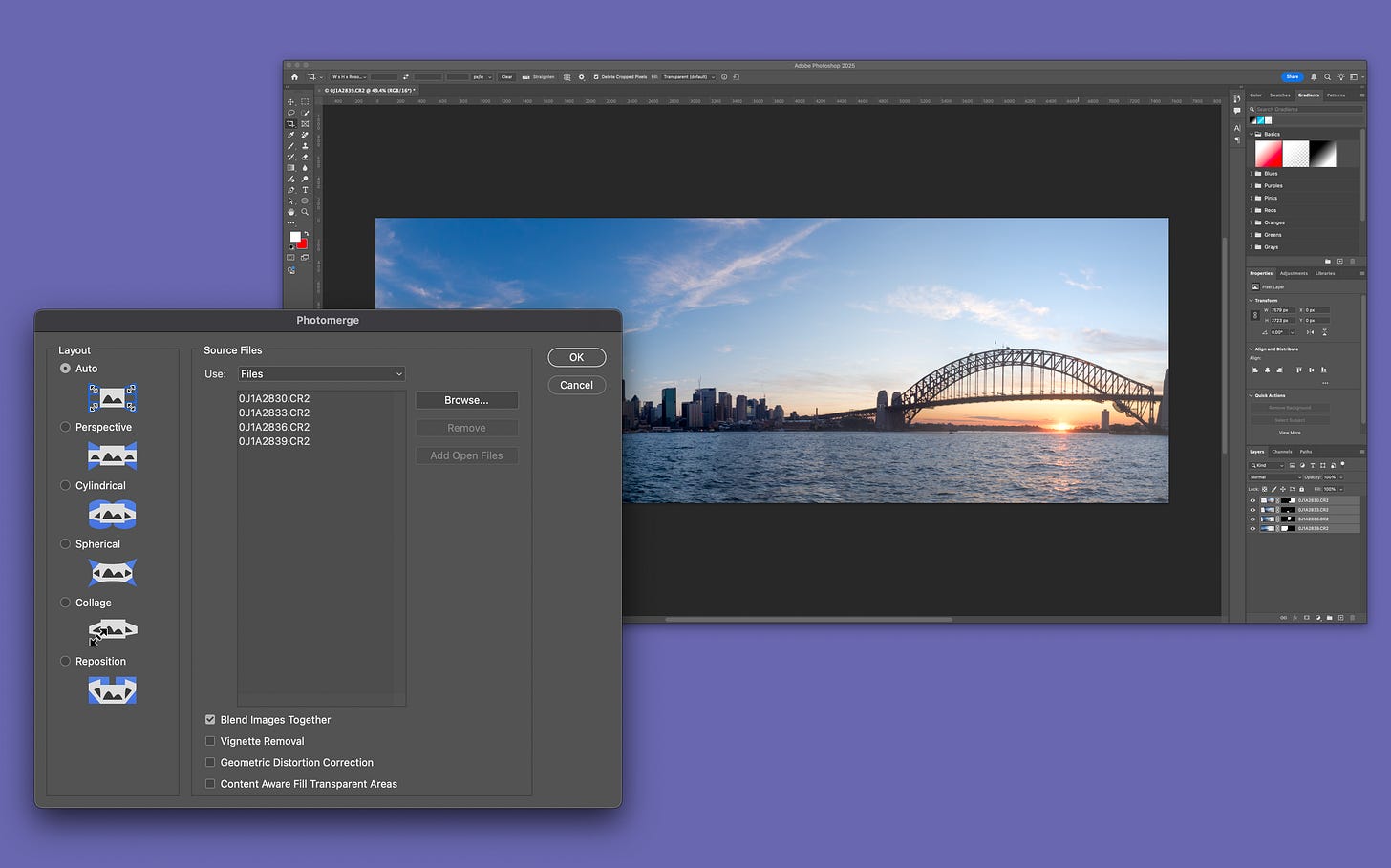
Adobe Photoshop meanwhile has had a panorama tool built-in for a couple of decades now and it’s safe to say that it’s reliable and well-crafted.
To stitch the images, Photoshop imports the entire image sequence as layers, aligns them and then computes layer masks to just show those parts of the image it needs. This means it is a wholly different process to all other pano tools which marry up the edges of adjacent images and then attempt to seamlessly blend them.
You have full control over blending in Photoshop but while it is possible to tweak the stitching by modifying layer masks, it’s an involved process with a lot of trial and error iterating which parts of the masks to add or remove.
You can configure the type of pano projection at the start of a merge and and enable content aware fill for those boundary areas that would otherwise be transparent. It’s best not to use auto mode because it tends to choose the wrong pano projection model – cylinder is nearly always the best choice.
Affinity Photo
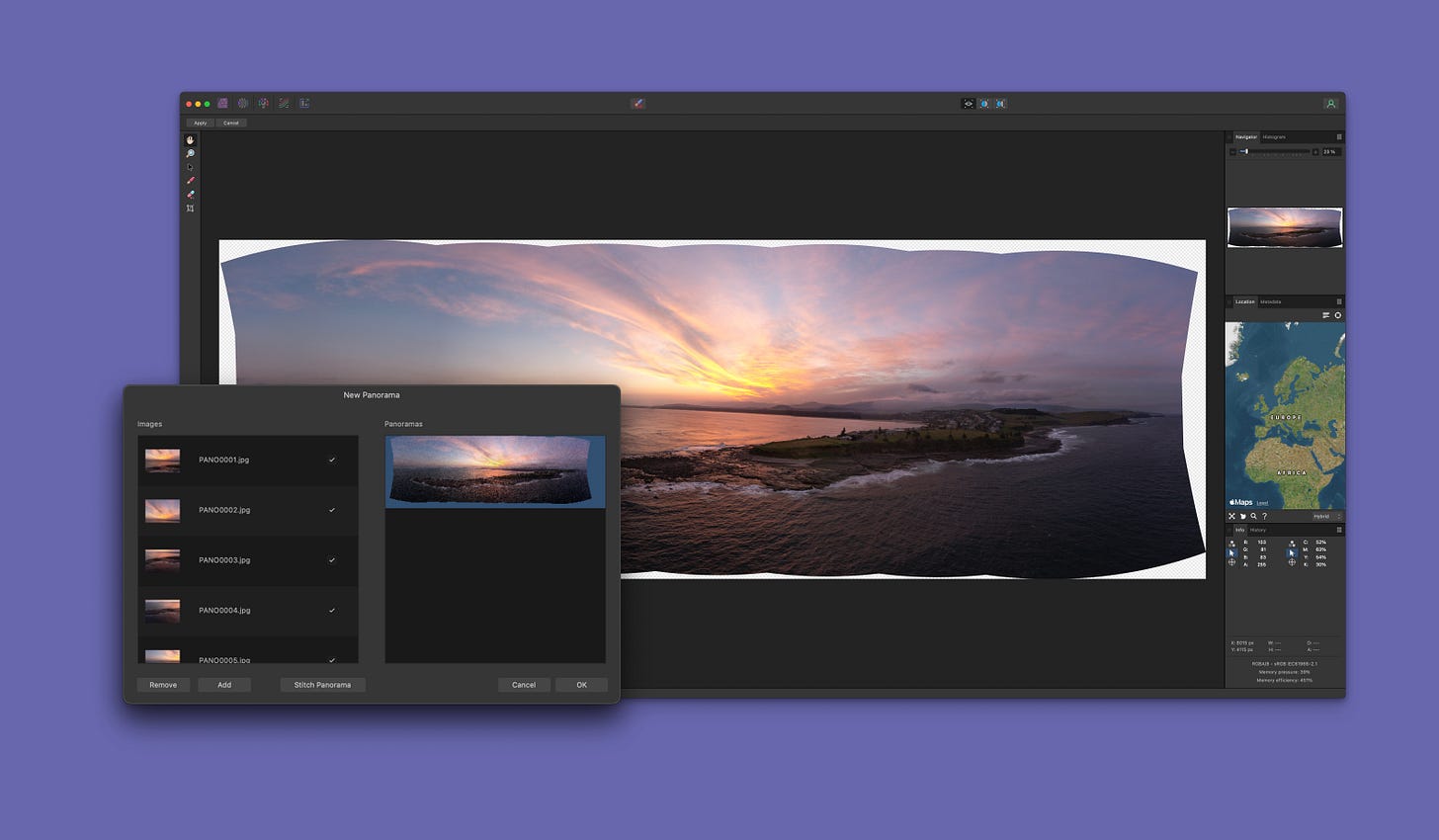
Serif have had a pano mode in Affinity Photo since its very early days – in fact they added it to version 1.4 all the way back in 2015. It does okay with traditional panos shot taken on DSLR or mirrorless cameras but struggles on drone shots or pano sequences lacking masses of adjacent control points.
To its credit, I didn’t see as many of the banding issues I experienced in some of the other apps and you can also edit image alignment manually should it be required, which is not possible in any of the other editors.
But it had joint alignment issues on pretty much all of the drone panos I tested, missing entire frames out of the image sequence in some cases and creating wobbly horizon lines in others.
Affinity Photo does have one unique tool that is useful to anyone shooting 360º panos – you can turn on a live projection and edit a pano in sphere mode which makes fixing up any holes i.e at the nadir, very easy.
Capture One
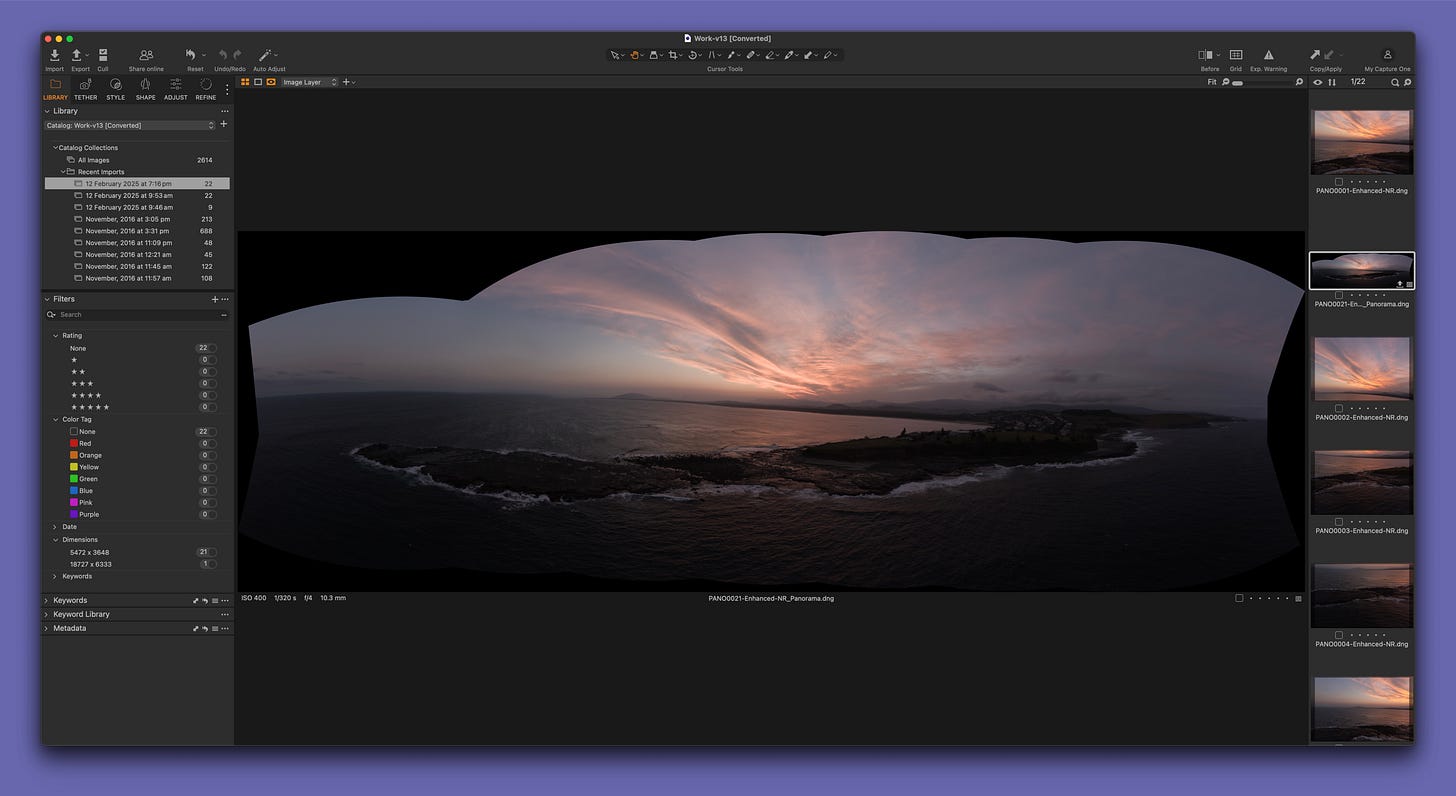
Capture One got its own built-in pano mode in 2022 with the release of Capture One 22, so the developers have had a bit of time to iron out the bugs. Unfortunately it’s a load of shit, and struggles on even the most basic of pano shots.
There are serious issues with the panos it produces – in all three core areas in fact – blending, stitching and projection.
To be more specific – firstly, it does a lousy job blending images, resulting in banding issues on even the simplest of panos – with or without the light falloff correction too.
Secondly it does a poor job stitching, particularly on aerial panos, leaving entire images out because it can’t find any suitable control points.
Thirdly it does a lousy job with projection models so you end up with banana shaped panos that are absolutely bugger all use to anyone.
On1 Photo RAW 2025
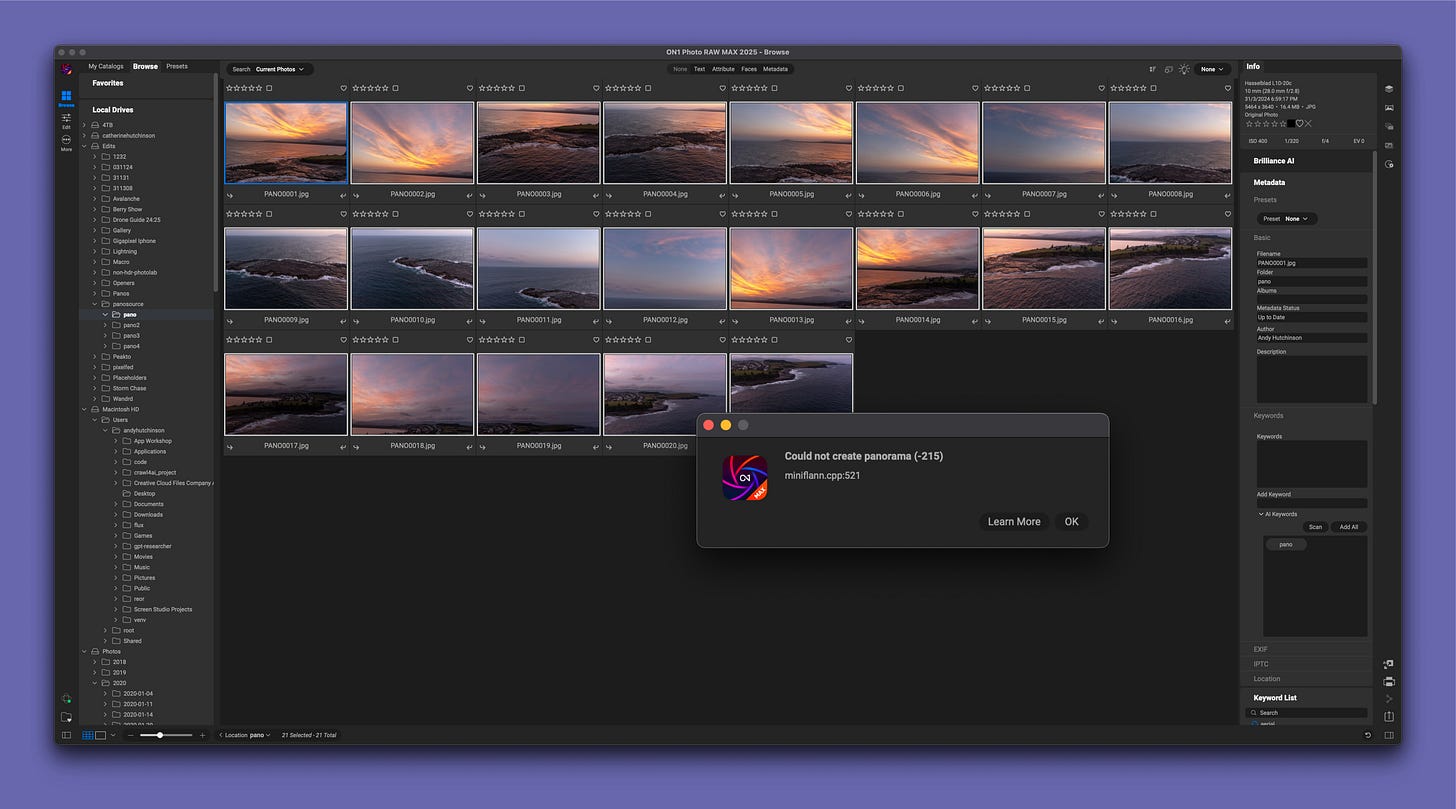
On1 Photo RAW 2025 has a singularly useless pano mode that sucks when used on simple landscape panos and bugs out with an error message when confronted with aerial panos. It managed the stitching of the few panos I managed to process with the app, but sucked when it came to blending the individual shots into one cohesive image.
And I have no test images at all for the drone panos because it fell on its arse in every single one of the test sequences I tried to process. If you manually loaded the images yourself in Microsoft Paint and lined them all up by eye, it would probably look better than the panos I managed to get Photo RAW to process.
Luminar Neo
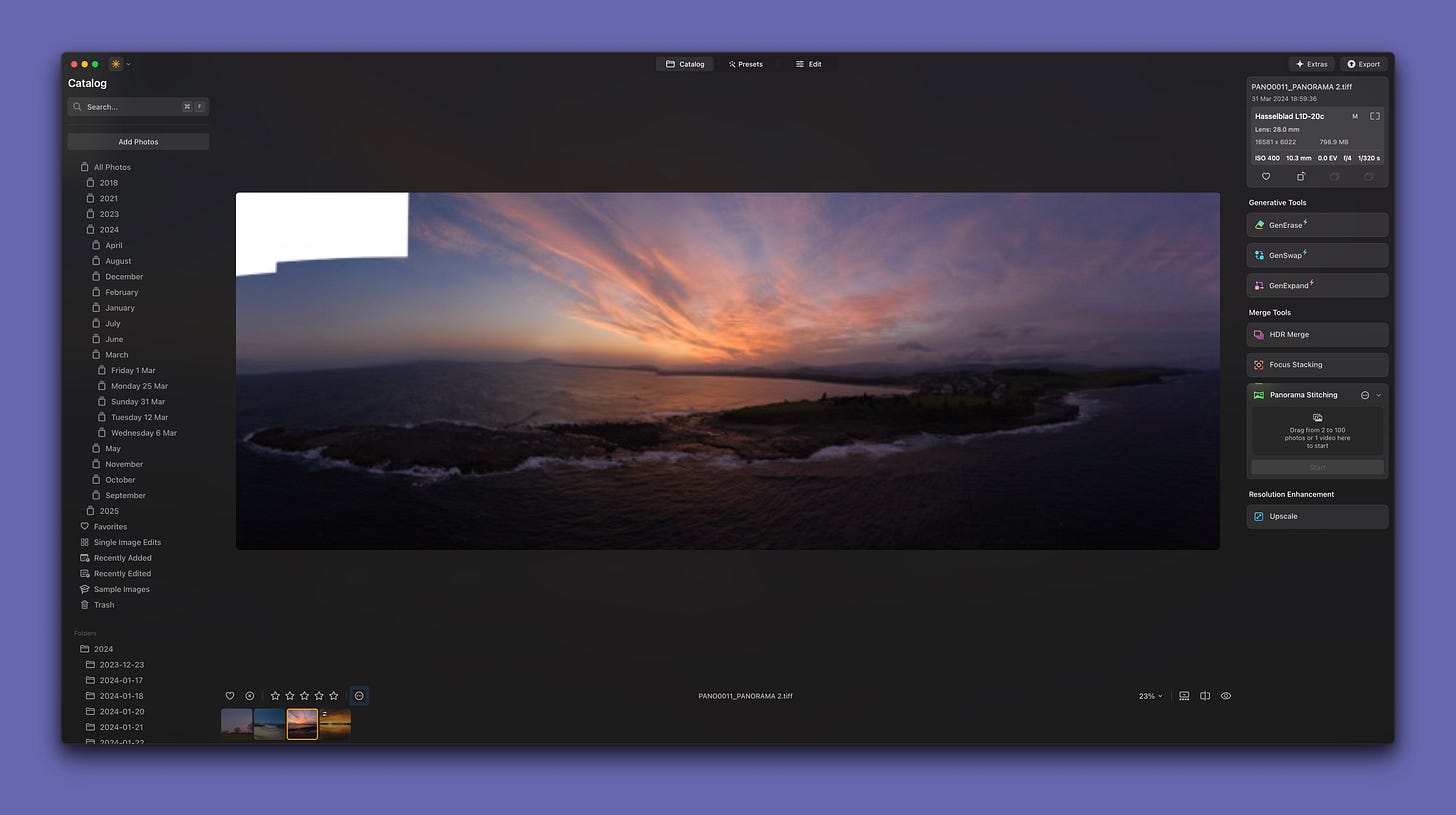
And finally we have Luminar Neo, which did at least have a crack at processing the drone panos, but did such a singularly woeful job that I’d almost have preferred it to shit itself like On1 Photo RAW did.
The drone panos are completely unusable, with missing images from the sequence and horizon lines that look like it was high on meth when it attempted to stitch them together.
The DSLR and mirrorless panos are awful too – the best I can say about them is that they didn’t suffer from banding in the sky. But zoom in to 100% in those panos and you’ll discover that it’s so wretched at stitching shots together that the output looks like a strong gaussian blur’s been added in post. Basically – useless.
The Verdict
And that’s the current state of panorama apps in 2025. The main takeaway from my testing is this.
If you are at all serious about your panos and shoot them on a regular basis then I strongly advise you to use a standalone pano app because you will get far more consistent results and the images will be less error-prone.
Do not, for one second, assume that paying cold hard cash for your software puts you at an advantage over the folks ‘roughing it’ in the world of open source software. Because in this case, it is categorically not true.
The funny thing is that I wasn’t even going to include Hugin in this test and it was only my autistic urge for completeness that lead to its inclusion.
Hugin’s interface looks like it was designed by 14 people, all of whom hate each other, but it is far and away the most powerful pano app and it produces far and away the best results. It even has a tiered interface system with a simple mode that locks away the complex stuff until you’ve studied a degree in advanced calculus and learned to love the word parallax.
The pano modes in Affinity Photo, Capture One, On1 Photo RAW and Luminar Neo should never be used for anything other than emergency pano stitching – though Affinity was the least worse of those four.
Lightroom Classic and Lightroom-the-other-version have far and away the best ‘bundled’ pano mode and you always have the fallback of Adobe Photoshop, on those rare occasions when they fail to come up with the goods.
Also published in RAW & Unfiltered on Substack.