macOS 27 for Photographers: The Actually Useful Stuff
 Andy Hutchinson
10 min read
Andy Hutchinson
10 min read
In many ways, macOS27 represents something of a redemption arc for Apple. In 2024 they promised us an AI powered Siri that didn’t royally suck and then they left us hanging once again, with the dumbest agent since Inspector Clouseau. And now, two years later, they’ve finally delivered an AI assistant that isn’t a global embarrassment.
The new interface design, liquid glass, didn’t get quite the appreciative reception they might have hoped for, and they have refined it and given all the haters an opt-out.
Performance and speed issues that users have complained about for years are finally being addressed with vastly improved Airdrop speeds and claimed improvements to network browsing. Spotlight, Apple’s indexing and search system, has been overhauled too and is now faster, more reliable and better at surfacing relevant results.
And there are some genuine gains for photographers too. Properly useful stuff that can have a meaningful impact on our workflows and potentially save a few bucks on AI subscriptions.
I’ve been using the new OS for the last three months through all of the developer betas, and I have some thoughts on what photographers with Apple Silicon Macs can expect when they install the public release.
The Intelligent Assistant
I think by now that we’ve all come to understand that there’s absolutely nothing intelligent about artificial intelligence. It’s just a highly complex mathematical probability and guessing machine with about the same intellectual depths as a turnip.
That’s not to say they’re not useful tools for lifting the load on the sort of non-creative stuff that takes the shine off a day: compiling lists, bringing clarity to disordered data, and all those other tasks that make you stare out of the window and wonder where it all went wrong.
And in macOS27, Apple finally supply an AI assistant that you can use in meaningful ways because it properly integrates with all the built-in apps for proper on-device queries that don’t involve your private life taking a scenic tour of Elon Musk’s server farms.
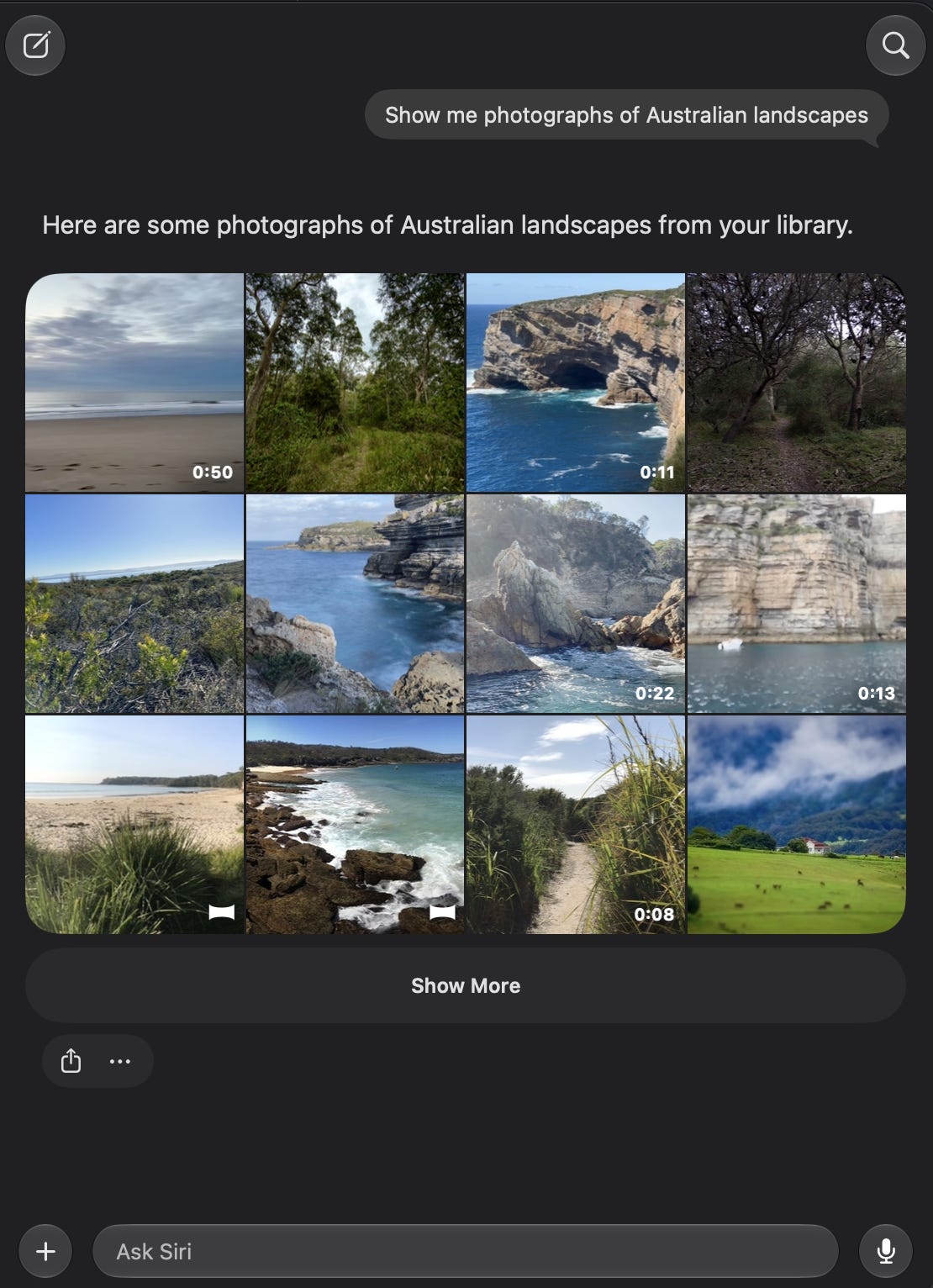
If you use Apple Photos as your photo archive then the natural language capabilities of Siri AI might prove to be useful. You can search by voice or text into the new floating Siri using the sort of natural text language in apps like Excire and Lightroom. If you’ve added people’s names in Photos then you can search for them, but you can also add any other search clauses you like such as ‘at the park’ or ‘wearing a red t-shirt’.
The search can use any context you’ve applied yourself, people, places, events and so on, but it also understands what’s in a photo without any extra details from you, leveraging the visual intelligence model.
Incidentally, here’s a little tip. You may find that if you invoke Siri with the ‘Hey you-know-who’ command that it answers on your iPhone instead of your Mac. This can be very frustrating because the iPhone always seems to take precedence. One neat way of solving that is to go into Settings > Siri > Requests on your iPhone and tick the option that says ‘Hey you-know-who’ only. Now when you want to invoke Siri on your Mac, you just say ‘Siri’ and when you want it on your iPhone, you say ‘Hey you-know-who’.
But, I digress.
You can of course use the new Siri AI as your everyday AI tool if you wish. It’s not as capable as the frontier models in ChatGPT and Claude, but for the vast majority of queries that most of us use these tools for, it is perfectly adequate, and has the added advantage of secure access to your on-device data.
I suggest using it on a day to day basis for a test period, for all those ‘what is the origin of the word shenanigans’ type questions, and you may find you can end those monthly payments to Anthropic and OpenAI.
Visual Intelligence
The visual intelligence model isn’t just built into Apple Photos of course, it can be used anywhere in the operating system, but it’s also able to identify stuff in your photos.
While I love photographing the natural world, I’m useless at identifying the things I capture, so the visual intelligence module proves useful when trying to identify flowers and wildlife. It can be used to identify animals and other creatures that you might be unfamiliar with. And it can also analyse your photographs in other ways, such as counting items.
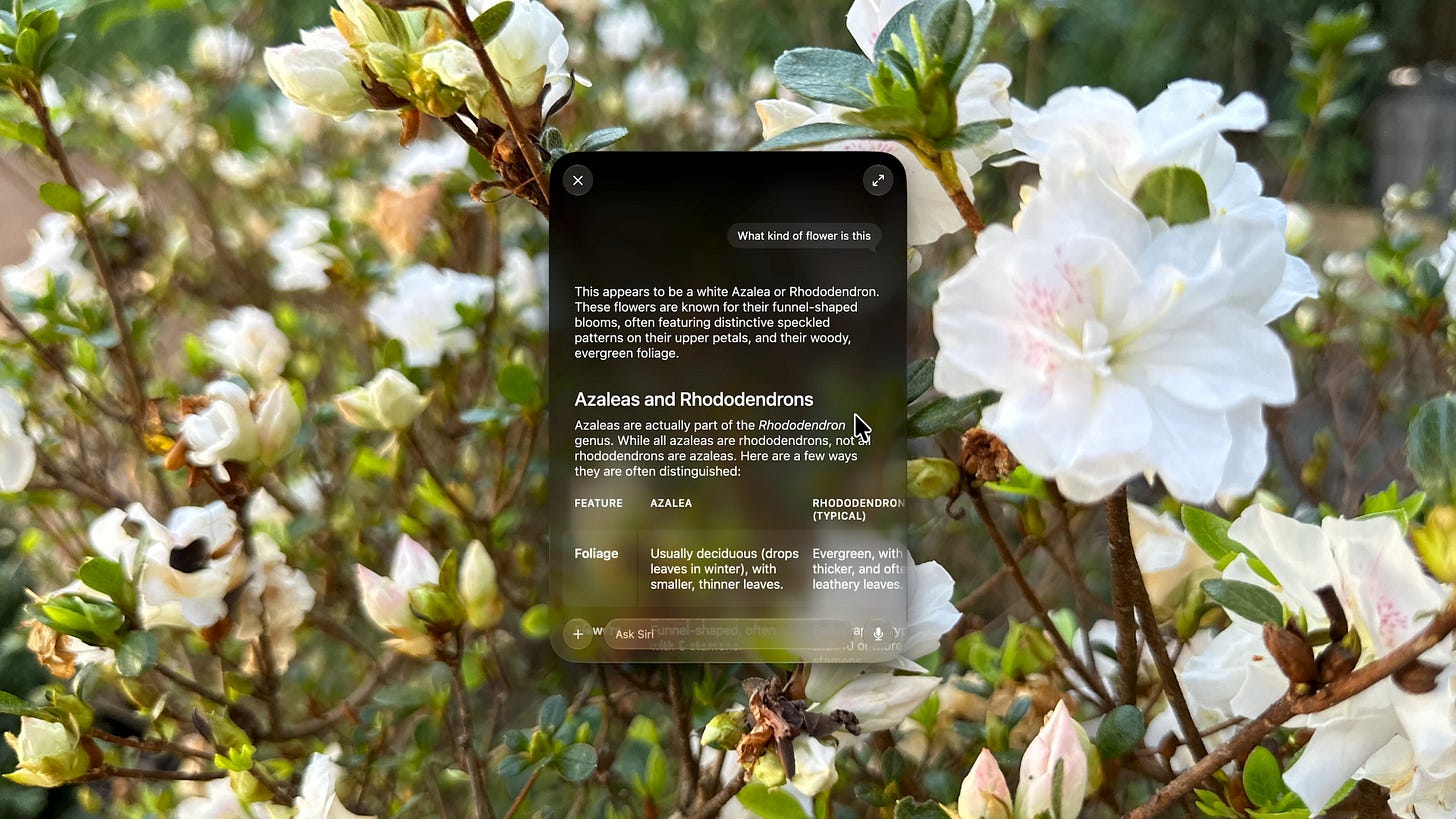
Where a photograph has metadata then Siri AI will of course use it. In this first example, the metadata has the location stored because I took it with my iPhone and it correctly tells me where it is based on that information.
But in this second example, the photo was shot on my Fuji X-T4 which does not have a GPS chip inside it and therefore records no automatic location data. But when asked to provide a location, Siri correctly identified it as the Royal Exhibition Building in Melbourne.
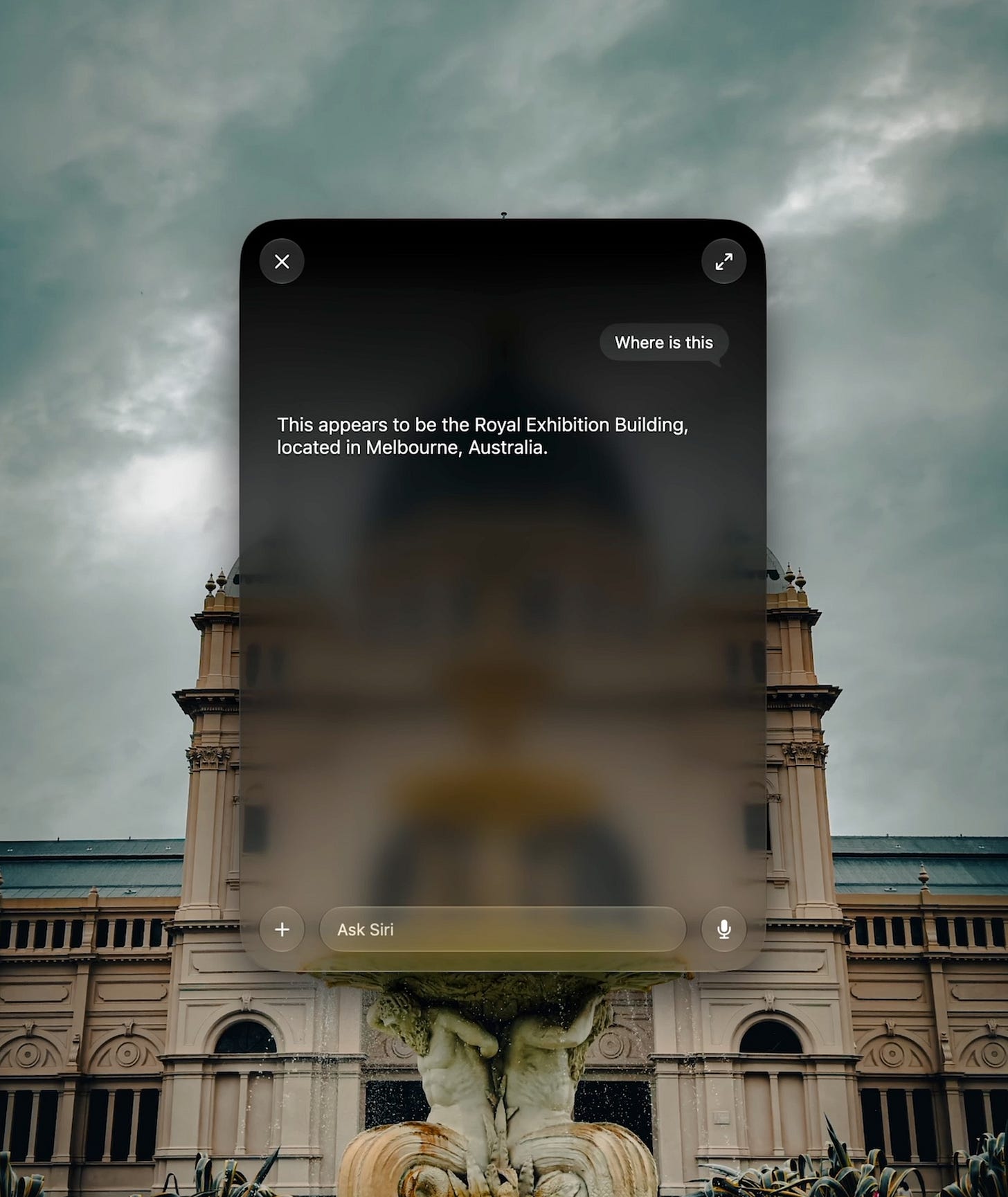
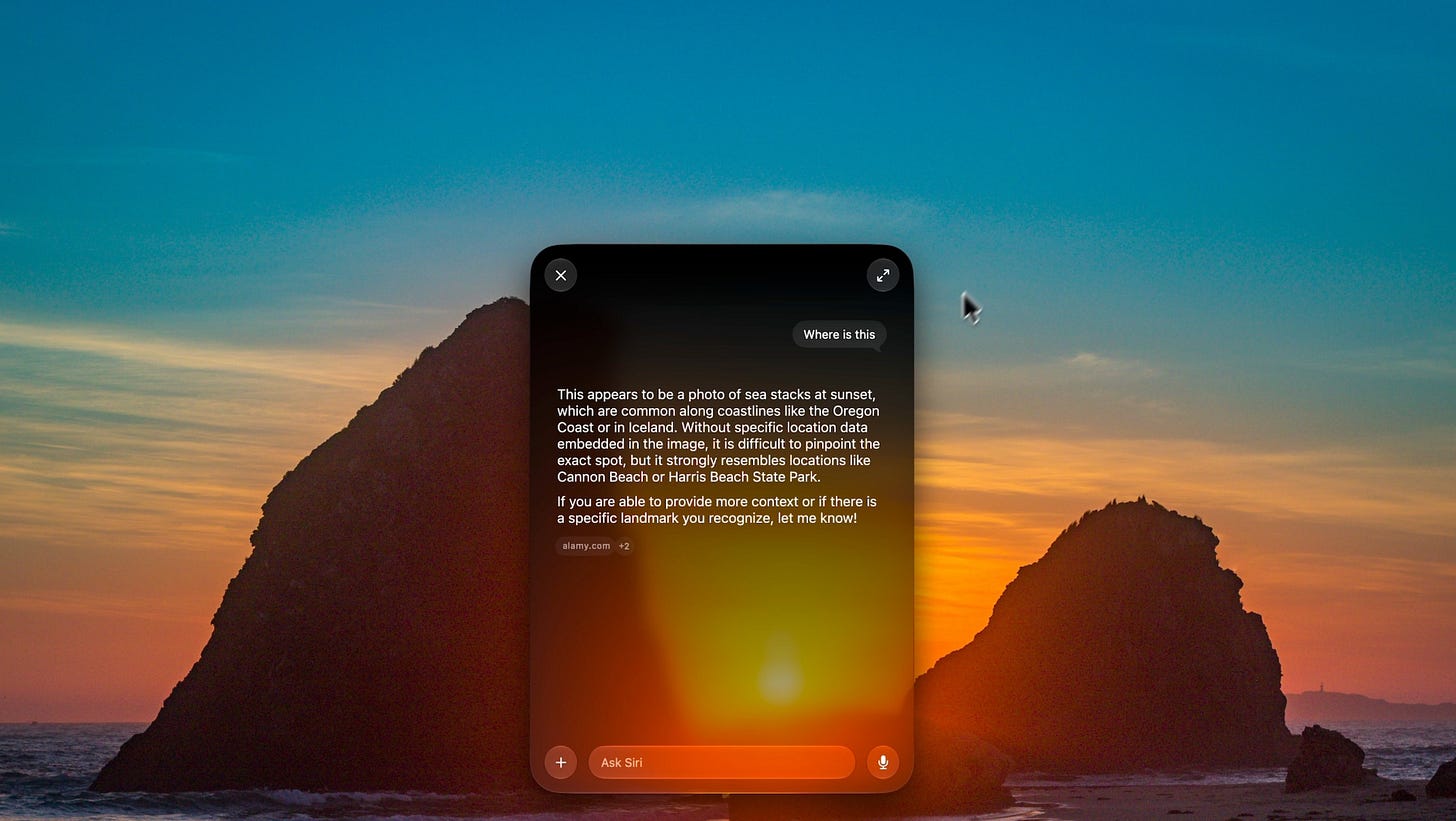
And of course, while I was using examples in Apple Photos, visual intelligence works with any app because it can see what is on-screen at the time of the prompt. So in this example, I have Adobe Lightroom running and Siri has no access to the metadata in these photographs or to my Lightroom library, it’s working entirely visually.
In this case I showed it a photograph of Point Perpendicular in Jervis Bay and it correctly named the location. But it’s not infallible and the less well known the location the less accurate it will become. In this case it’s a locally famous spot called Glasshouse Rocks and Siri (not unreasonably) suggested it was somewhere on the Oregon Coast, though it is in fact in South Coast NSW.
RAW9 and Built-in AI Denoise
I’ve written previously about the development of RAW9, which brings parallel AI denoising and demosaicing to macOS for the first time. The code is there for anyone to use, it just needs to be enabled by the developer, but at the time of writing it doesn’t look like any of them have yet, including Apple themselves.
I had expected Apple to have included it in the version of Apple Photos that they released with macOS27, but based on my investigations, it would seem they have not. I tested exports on supported RAW files and compared the outputs against full RAW9 exports from my own test app, and I can see no evidence of RAW9 being used in the build of Apple Photos in the first public release of macOS27.
And you’d have thought that Apple might have rolled out updated versions of Photomator and Pixelmator Pro, but the former was last updated two weeks ago and the latter five months ago, with no sign of the new RAW9 features enabled in either. That said, Photomator already had an excellent AI denoise built in, though it is a different model to the new one running in the OS.
When I tested RAW9 I found it to be a powerful and highly capable model which sensitively removes noise and does a great job of retaining detail. But you won’t be seeing it in Photolab, Lightroom or Capture One, as they have their own demosaicing engines. Instead it will appear in Mac apps like Nitro, Darkroom, Muse and the other independent RAW editors that use built-in demosaicing and not an off-the-shelf library. This is a great way of levelling up the smaller independent apps and making them better alternatives to the expensive top tier apps.
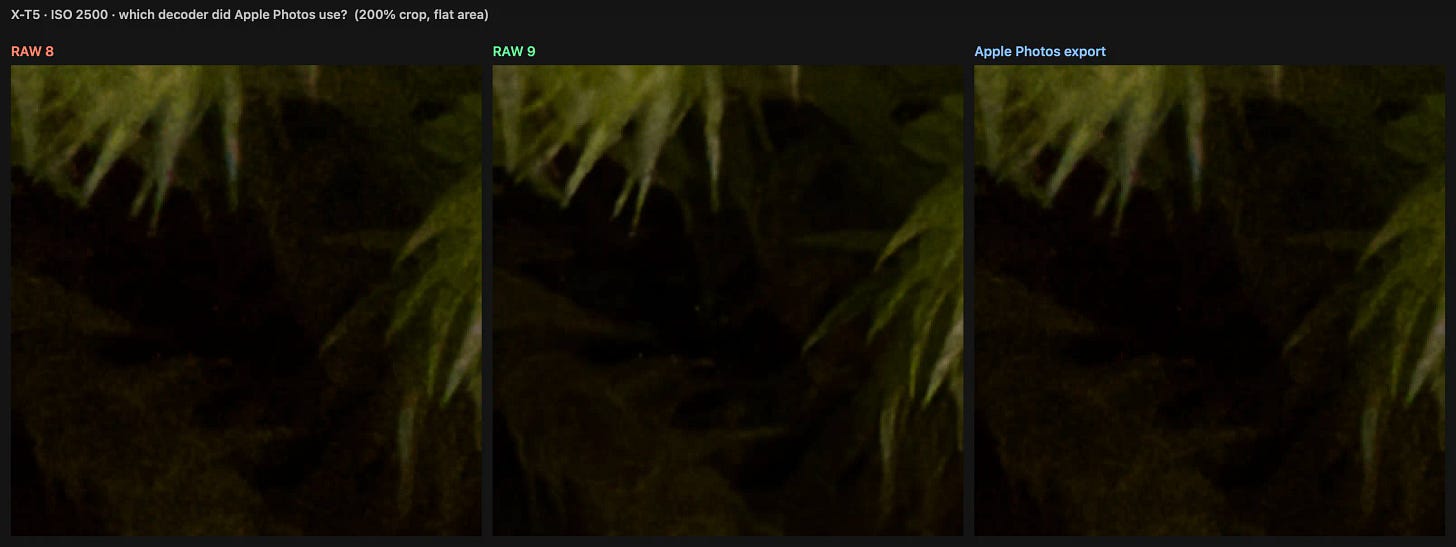
Nik Bhatt, the developer of Nitro, has updated his blog and says he is “working hard on another update that adds support for Apple’s RAW v9 decoder” which is good news. And I dare say we’ll see a steady trickle of updates from the other developers as they flick the switch on RAW9 in their apps.
Cleanup, Extend and Reframe
So while it’s disappointing and, I should add, somewhat surprising that Apple apparently haven’t enabled RAW9 in Apple Photos or their other specialised photography apps, it does now ship with the new neural engine powered tools: cleanup, extend and reframe.
These work about as well as you’d expect. The AI generated regions of a modified photograph are obvious, with changes in colour, texture and resolution all fairly evident, but it’s not terrible output. Ultimately though these are gimmicks and not intended for serious use, so it would be churlish of me to judge them against similar AI tools marketed at professionals.
But compared against the output from something like generative expand in the latest version of Adobe Lightroom, I actually preferred the Apple Photos version since it didn’t try to turn my dog’s tail into a fifth leg or a small hand wearing a tiny white glove.
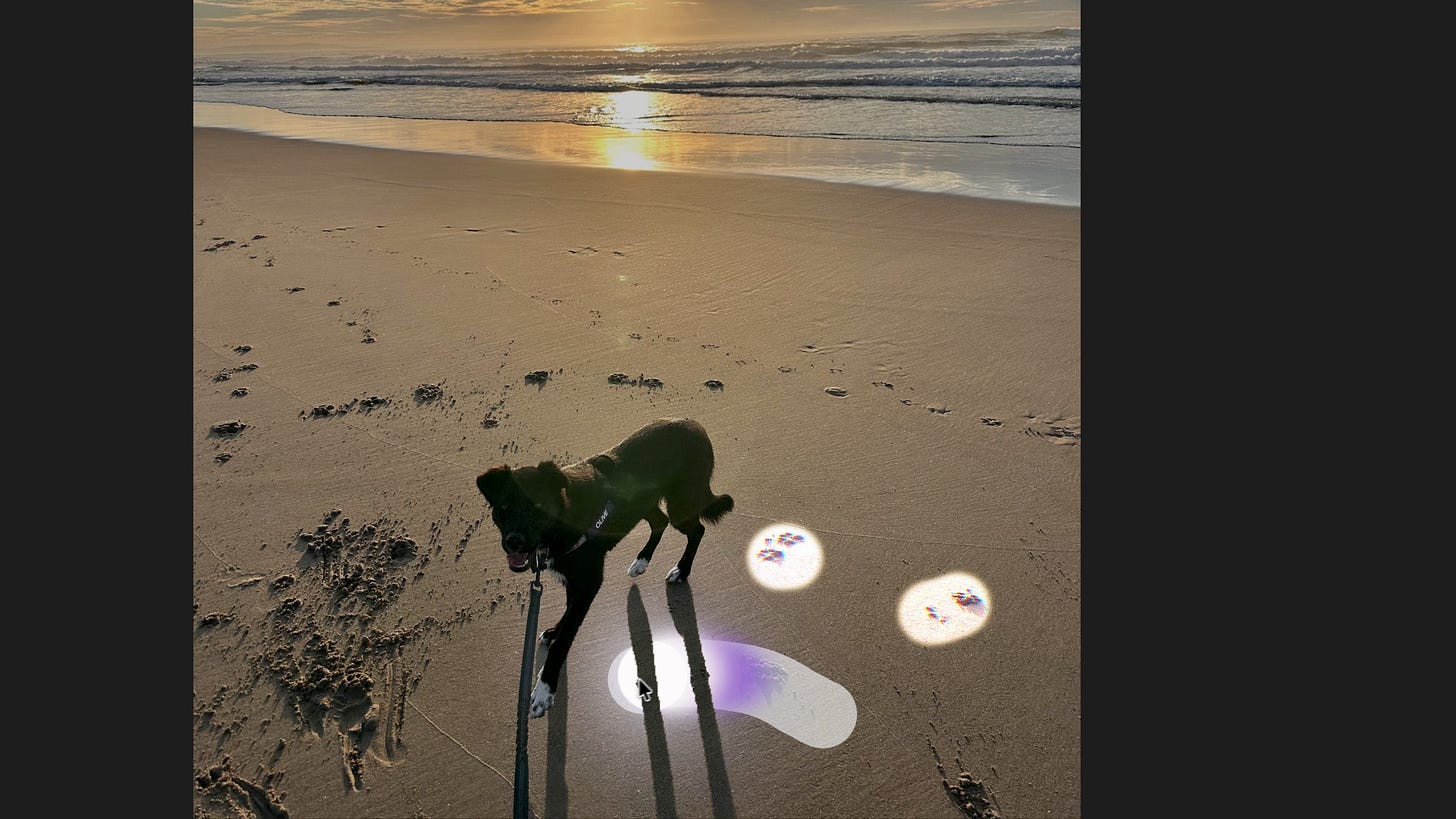
Best of the three is most definitely the cleanup tool, which does a moderately decent job of removal but can suffer from the same edge contrast issue which, depending upon the textures in the photo, makes modified areas obvious.
Also new in this version of Apple Photos is an option to save a frame of video as a photo, a replacement for the old “export frame to Pictures folder”. The output image is an HEIC file, same resolution as the video and retaining more editing latitude than a straight JPEG, with adjustments to highlights, shadows and so on all possible.
We also now get full-resolution shared albums and better cross-platform access via iCloud.com, so you can share photos with others using Windows or Android devices.
General Improvements
One of the things Apple promised with this version of macOS was updates to the unglamorous stuff that we use every day, things like network file transfer speed and airdrop.
In my tests, using my MacBook Pro running Golden Gate and my iMac running Sequoia, airdrop speed was about twice as fast on the MacBook. Network tests are a different story though, and I didn’t find any difference in file transfer speeds over our local wired network here whether it was to a NAS drive or another Mac. Previews over the network weren’t any faster either and icon thumbnails did not draw in any faster.
And lastly, a quick word on compatibility. I have had absolutely zero issues with any of the apps I use. I have pretty much all of the RAW editors installed and have had no dramas with any of them. Photolab, Capture One and both versions of Lightroom all worked perfectly from beta one, and all the smaller apps work perfectly too.
Goodbye Intel
Of course the most dramatic difference between this version of macOS and all previous ones is that it runs on Apple Silicon only. This undoubtedly means that there will be a large number of photographers running something like a 27” Intel iMac who are now blocked from all future OS upgrades.
With every major update to macOS, Apple always cuts off a number of its older models, this is nothing new. But what has changed this time is that there will be no off-the-books work-around from something like the OpenCore project. Intel-specific kernel and driver extensions have been completely removed from the operating system and Macs with Intel chipsets cannot run any macOS from 27 Golden Gate onwards, end of story.
Apple are also phasing out support for Rosetta, their real-time translation layer for old Intel software. What that means is that come the next version of macOS, any scanners, calibration pucks, printer utilities, tethering tools or plugins that used Rosetta will stop launching, permanently.
Apple Have Delivered
I’ve been running the developer betas for the new versions of macOS for many years now and Golden Gate has been the smoothest update by far, rock solid from beta 1.
Apple have come in for a lot of flak over the years about just how piss-poor Siri was and every single bit of it was justified. It was without doubt a substandard ‘feature’ on iOS and macOS from the very beginning. But the version now available to Apple users with compatible hardware finally delivers on the promises they made 16 long years ago.
For photographers there are tangible benefits from the new Siri: surfacing photos, finding information in Apple Notes or Messages, tracking down emails in Apple Mail. It’s more about the everyday stuff than the ‘well that’s neat’ moments. For example, a few days ago I was stood on a trail in the national park, my hands were full, and I just used voice mode with Siri to find a note I’d made about the location, which it surfaced in about five seconds.
This is how a digital assistant should be. Not pretending to be your buddy or pretending to have ‘watched a film’ or wrestling with whatever angst-ridden demons you’ve built up over your life, but just doing menial but helpful tasks as and when you want it to.
Combined with the new visual intelligence module, you can do fewer reverse image searches on Google and more analysis on-device. It’s a shame that the excellent RAW9 is not more visible in this release, but the code is definitely in there and it will only be a matter of time until a developer releases a RAW9-capable photo editor.
It’s a streamlined and extremely fast operating system with a huge number of small quality updates, along with some massive new features, that add up to one of the most significant upgrades in years.
Also published in RAW & Unfiltered on Substack.