Adobe is up in Your System ‘Hosts’ File – And It’s Not a Good Look
How unlike them
 Andy Hutchinson
2 min read
Andy Hutchinson
2 min read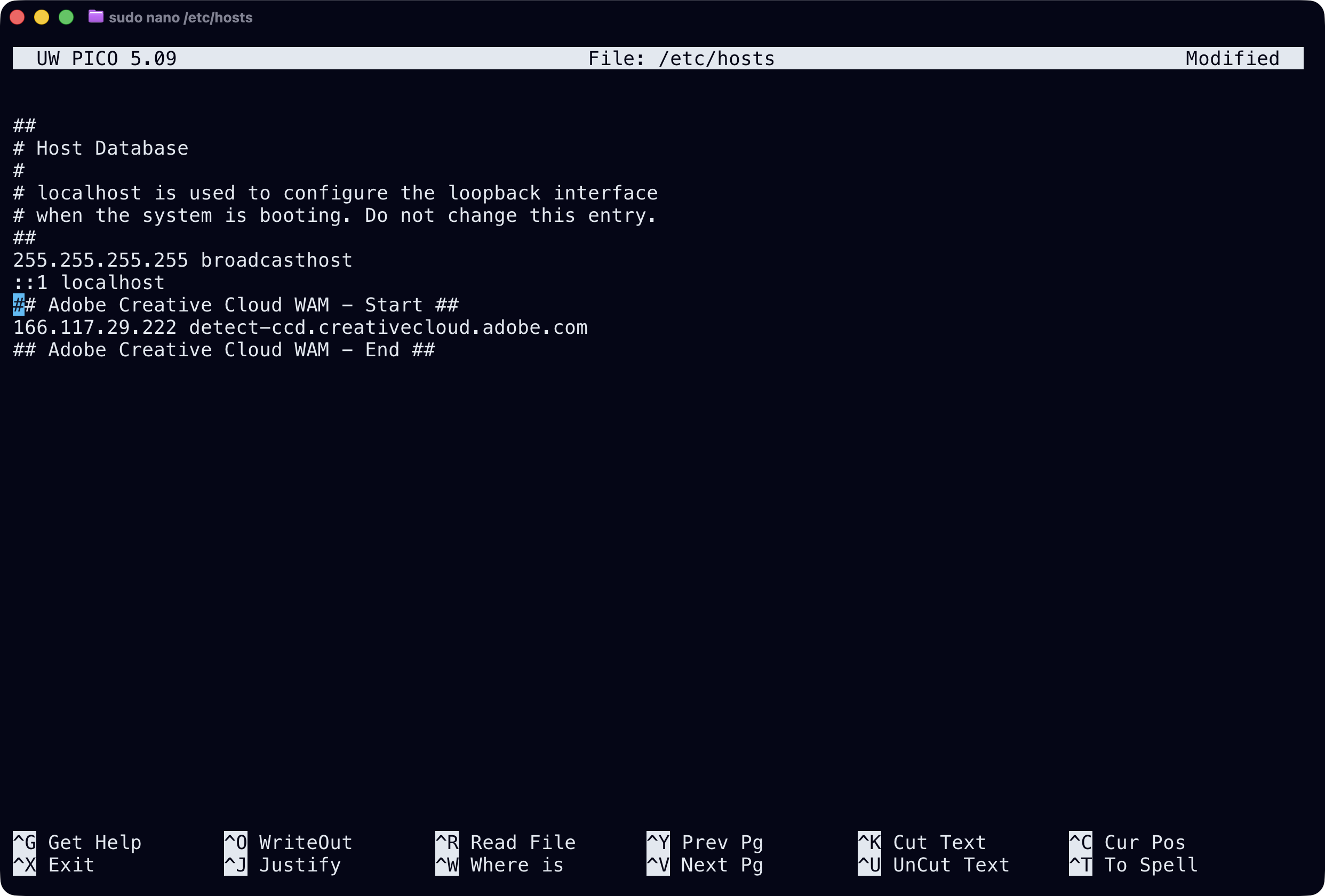
A
n interesting post on Reddit caught my eye today, claiming that the Adobe Creative Cloud app had been quietly editing people’s system hosts files. Naturally, I checked mine and what-do-you-know, there’s the entry Adobe had written, without asking, that forces a specific Adobe domain to resolve to a specific IP address.
In case you’re not up on system hosts files or why it being edited without notice by a company like Adobe is a bad thing, here’s the low-down.
Your hosts file is a low-level system config file that controls how your computer finds websites. It has all sorts of useful purposes and should absolutely exist, but it’s your file, on your computer, and Adobe has taken it upon themselves to edit it. Not to fix a bug. Not to help you. Nope – this is purely in order to make sure their license detection service always phones home to exactly the server they want it to.
This it not typical behaviour for mainstream commercial software. Modifying the system hosts file without user consent is a technique more widely associated with malware than with a product you’re paying top dollar for. Reputable applications handle their own networking internally, they don’t go fucking around with system-level config files like they own the joint.
Why have they done this? It’s pretty clear. Adobe are more than happy to reach as deep into your system as they like to make sure that you haven’t decided to defect from the protected waters of a Creative Cloud subscription to sailing the seven seas.
Fixing the Host Files
Mac
Open Terminal
Type the following code the press enter:
sudo nano /etc/hosts
Type your Mac password when prompted (you won’t see it as you type, that’s normal)
Use the arrow keys to find the three Adobe lines (they start with
## Adobe Creative Cloud WAM)Place your cursor on each line and press Control+K to delete it. Do this for all three lines.
Press Ctrl+O then Enter to save
Press Ctrl+X to exit
PC
Open Notepad as Administrator (right-click Notepad, choose “Run as administrator”)
Go to File > Open
Navigate to
C:\Windows\System32\drivers\etcChange the file filter from “Text Documents” to “All Files”
Open the file called
hostsFind and delete the three Adobe lines (they start with
## Adobe Creative Cloud WAM)Save and close
Note: Adobe may re-add these lines the next time Creative Cloud updates. Because of course they will.
Also published in RAW & Unfiltered on Substack.